

.webp)
.webp)
.webp)
.webp)
Description
Download Brother iPrint & Scan – Free Mac Scanning & Printing Tool
Overview
Brother iPrint & Scan is a free utility developed by Brother Industries, Ltd. that brings powerful scanning and printing capabilities to macOS devices. The application automatically discovers compatible Brother printers and scanners on the same network, allowing users to perform bulk operations without leaving the desktop. Whether you need to digitize receipts, create searchable PDFs, or produce high‑resolution prints, iPrint & Scan offers a streamlined workflow that caters to both casual home users and small‑office professionals. The tool supports OCR (Optical Character Recognition), enabling the conversion of scanned images into editable, searchable documents—a feature that saves time when dealing with contracts, invoices, or research papers. Users can customize file names, destination folders, and target applications, then store those settings as reusable workflows for future scans. While the interface is intentionally simple to lower the learning curve, the app still provides granular control over size, resolution, color depth, and contrast. This balance of ease‑of‑use and depth makes Brother iPrint & Scan a compelling addition to any Mac‑based document management routine. Although occasional network hiccups can cause temporary disconnections, the overall stability and feature set remain strong, positioning the app as a reliable, cost‑free alternative to premium scanning suites.
Key Features
- Automatic Device Detection: The software scans your local network for compatible Brother printers and scanners, eliminating manual IP configuration.
- Multi‑Format Export: Save scans as PDF, JPEG, PNG, or TIFF, with optional compression settings for smaller file sizes.
- Built‑in OCR Engine: Convert images into searchable PDFs or plain‑text files in multiple languages, improving document accessibility.
- Customizable Workflows: Store preferred scan settings—resolution, color mode, destination folder, and file naming conventions—for one‑click reuse.
- Bulk Scanning & Printing: Initiate batch jobs to scan multiple pages or print large document sets without repeated user interaction.
- Direct App Integration: Send scanned files directly to Microsoft Word, Apple Pages, or your preferred cloud storage provider.
- Resolution & Color Control: Choose from 75 dpi up to 600 dpi and toggle between color, grayscale, or pure black‑and‑white output.
- Contrast & Brightness Adjustment: Fine‑tune image quality before saving to ensure legible text and vivid graphics.
- Secure Printing: Leverage Brother’s built‑in authentication to protect confidential documents from unauthorized printing.
- Free Updates: Regular software patches improve compatibility with new macOS releases and add minor feature enhancements.
Installation & Usage Guide
Step‑by‑Step Installation
- Visit the official Brother website or the Mac App Store and locate “Brother iPrint & Scan”.
- Click Download and open the .dmg file once the download completes.
- Drag the iPrint & Scan icon into your Applications folder, then launch the app.
- If macOS prompts for permission, grant access to your network and to the Documents folder so the app can save scanned files.
- The first launch will automatically scan your network for compatible Brother devices; select your printer or scanner from the list.
How to Scan a Document
- Place the paper on the scanner glass or load a stack into the automatic document feeder (ADF).
- In iPrint & Scan, click the Scan button. The preview window appears, allowing you to adjust size, resolution (75‑600 dpi), and color mode.
- Use the Settings gear icon to set contrast, brightness, and OCR language. Enable “Create Searchable PDF” if you need text extraction.
- Choose a destination: local folder, iCloud Drive, or a connected app such as Word. You can also rename the file using a predefined naming pattern.
- Press Start Scan. The app processes the image, applies OCR (if selected), and saves the file according to your preferences.
Printing from the App
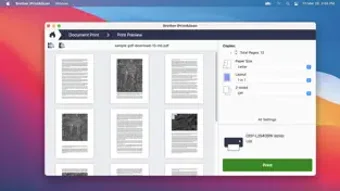
To print, open the scanned file within iPrint & Scan or use the Print tab to select a previously scanned document. Adjust print settings—paper size, duplex mode, and color options—then click Print. The app routes the job to the chosen Brother printer, applying any security or authentication protocols you have configured.
Compatibility and System Requirements
Brother iPrint & Scan is optimized for macOS 10.13 (High Sierra) and later, including macOS Ventura (13) and macOS Sonoma (14). The application runs natively on both Intel‑based Macs and Apple Silicon (M1, M2) devices, leveraging Rosetta 2 where necessary. While the primary focus is on desktop macOS, a limited mobile version exists for iOS, allowing scanning directly from iPhone or iPad; however, the full feature set—including bulk scanning and advanced OCR—is exclusive to the desktop client. For network connectivity, a stable Wi‑Fi or Ethernet connection is required; Ethernet offers the most consistent performance, especially in office environments with multiple Brother devices. The app also supports USB‑connected scanners, though wireless detection provides a smoother setup experience. Minimum hardware specifications include 2 GB RAM and 150 MB of free disk space for installation, with additional storage needed for saved documents.
Pros and Cons
Advantages
- Completely free with no hidden fees.
- Automatic device discovery simplifies setup.
- Robust OCR creates searchable PDFs in multiple languages.
- Customizable workflows save time on repetitive scans.
- Supports both bulk scanning and printing from a single interface.
- Regular updates keep the app compatible with the latest macOS releases.
Drawbacks
- Occasional network disconnections require manual reconnection.
- No built‑in cloud storage; users must configure external services.
- Limited advanced image editing tools compared to premium suites.
- Mobile version lacks some desktop features like batch processing.
- Interface, while simple, may feel dated to users accustomed to modern UI trends.
Frequently Asked Questions
Is Brother iPrint & Scan truly free?
Yes, the application is completely free to download and use on macOS. There are no hidden subscription fees or in‑app purchases.
Can I scan to cloud services like Google Drive or Dropbox?
While iPrint & Scan does not include native cloud connectors, you can set the destination folder to a synchronized cloud directory (e.g., a Google Drive folder on your Mac). The scanned file will then upload automatically.
What OCR languages are supported?
The built‑in OCR engine supports English, French, German, Spanish, Italian, Dutch, Portuguese, and several Asian languages. Additional language packs can be added via the settings menu.
Is the app compatible with older Brother models?
Most Brother MFC and DCP series printers released after 2015 are fully supported. For older hardware, basic scanning works, but advanced features like OCR may be unavailable.
How do I troubleshoot network disconnections?
First, ensure both the Mac and the Brother device are on the same Wi‑Fi band. Restart the router and the printer, then re‑launch iPrint & Scan. If the issue persists, use a wired Ethernet connection for more stable communication.
Conclusion & Call to Action
Brother iPrint & Scan delivers a solid, no‑cost solution for Mac users who need reliable scanning and printing capabilities. Its automatic device detection, powerful OCR, and customizable workflows provide a level of convenience that rivals many paid alternatives. While occasional network hiccups can be frustrating, the overall performance and feature depth make it a worthy addition to any home office or small‑business environment. If you’re looking for a secure, free way to digitize documents, create searchable PDFs, and manage bulk print jobs, give Brother iPrint & Scan a try today.
Ready to simplify your document workflow? Download Brother iPrint & Scan now and start scanning with confidence.
Guides & Tutorials for Brother iPrint Scan
How to install Brother iPrint Scan
- Click the Preview / Download button above.
- Once redirected, accept the terms and click Install.
- Wait for the Brother iPrint Scan download to finish on your device.
How to use Brother iPrint Scan
This software is primarily used for its core features described above. Open the app after installation to explore its capabilities.
User Reviews for Brother iPrint Scan 0
No reviews found





.webp)